Move a project across organizations
This feature requires the PL_PROJECT_MOVEMENT_ENABLED feature flag. Contact Harness support to enable it.
This document provides step-by-step guide to move a project across organizations, including prerequisites and detailed movement steps.
Prerequisites
- Move Project (
core_project_move) permission on the source project. - Create Project (
core_project_create) permission in the destination organization.
Steps to move a project
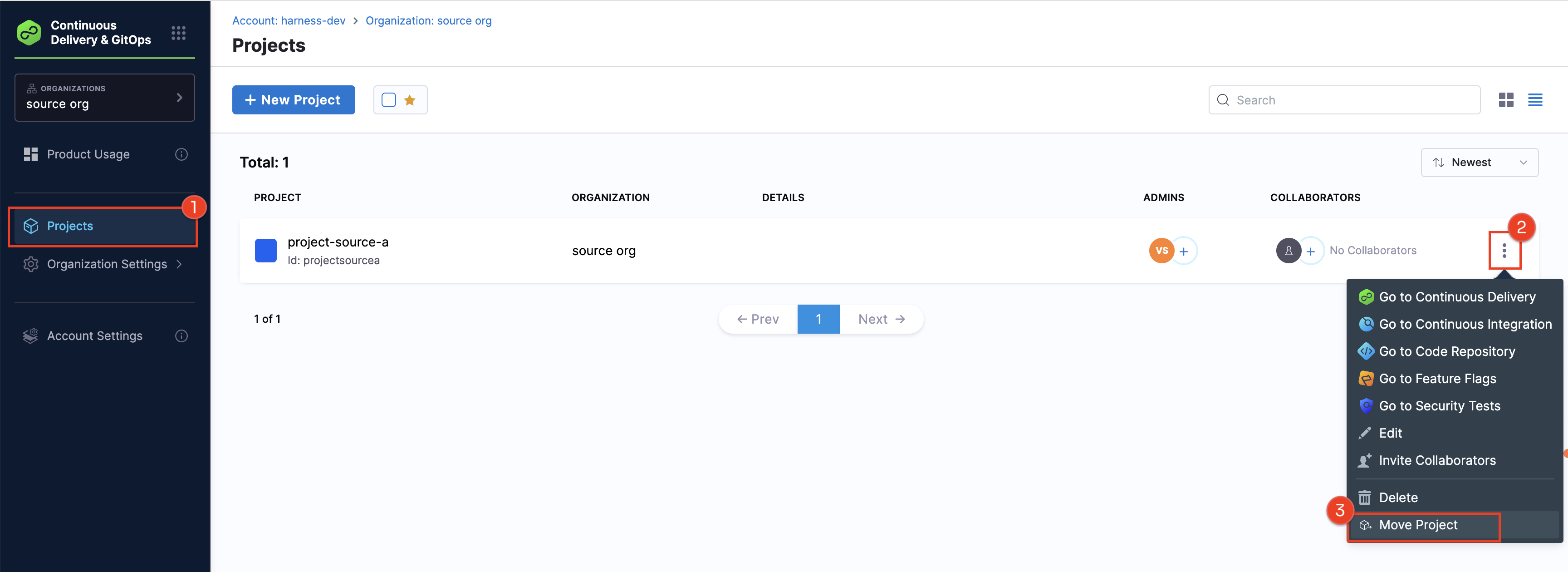
Step 1: Navigate and access the move option
-
Navigate to the source organization in your account and locate the project you want to move.
-
Click the ⋮ icon next to the project you want to move
-
Select Move Project
Step 2: Select destination organization
-
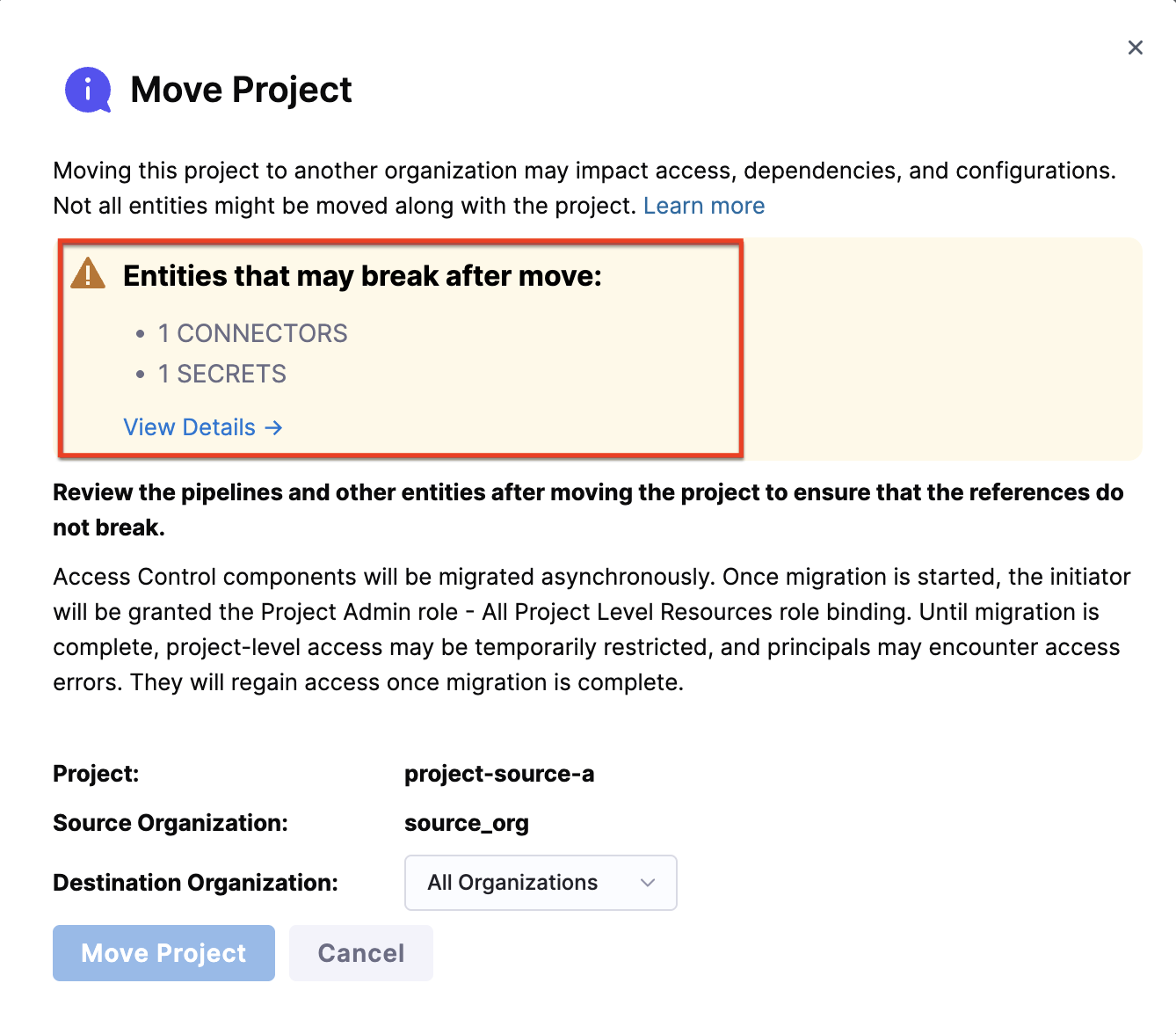
In the Move Project modal, review the warning about potential impacts.
-
Review the list of entities that may break after the move. This list is not exhaustive, so additional entities might also be affected. As shown below, you can view details and select each referred entity type to explore further.
-
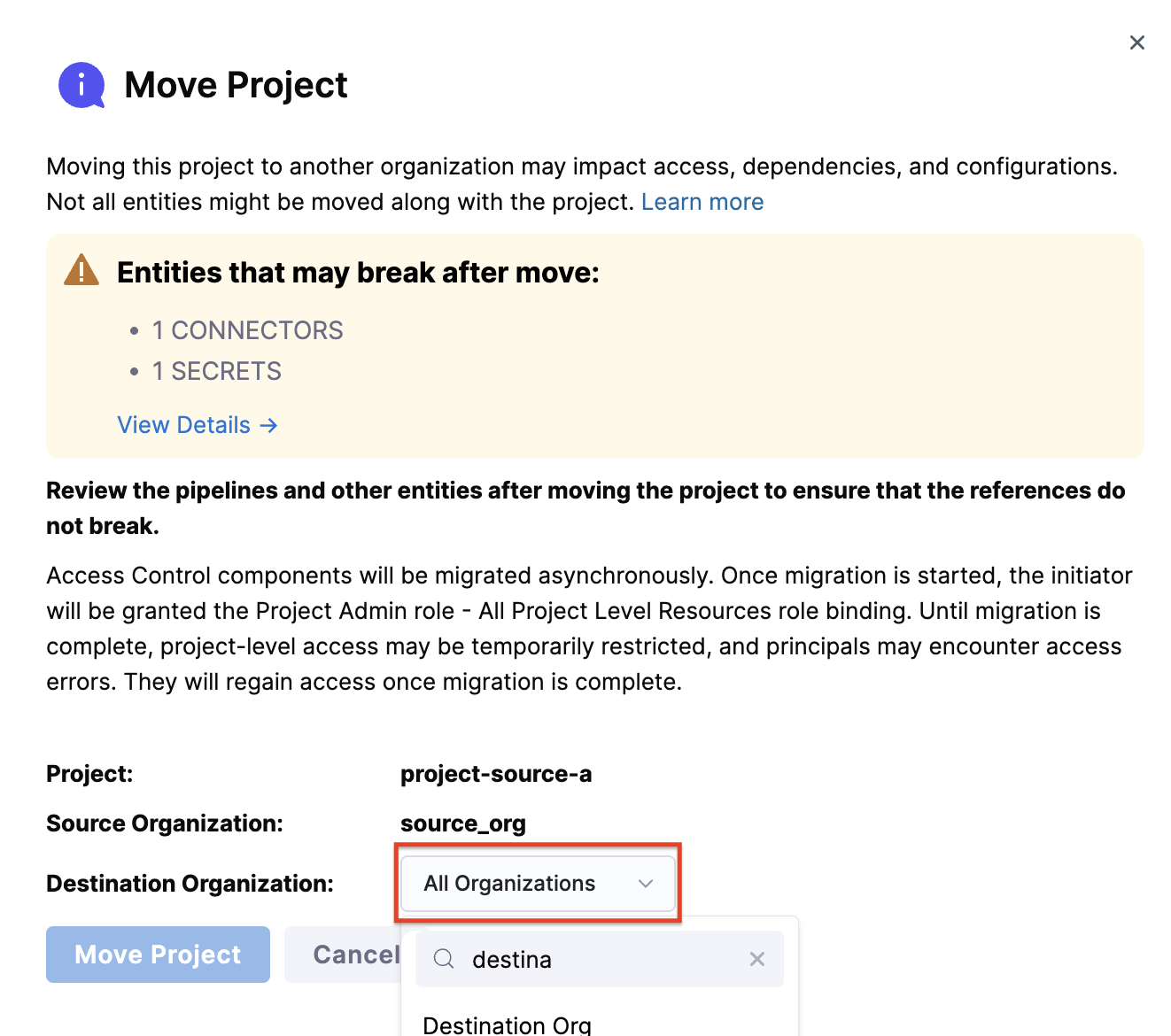
Select the destination organization from the dropdown where you want to move the selected project.
-
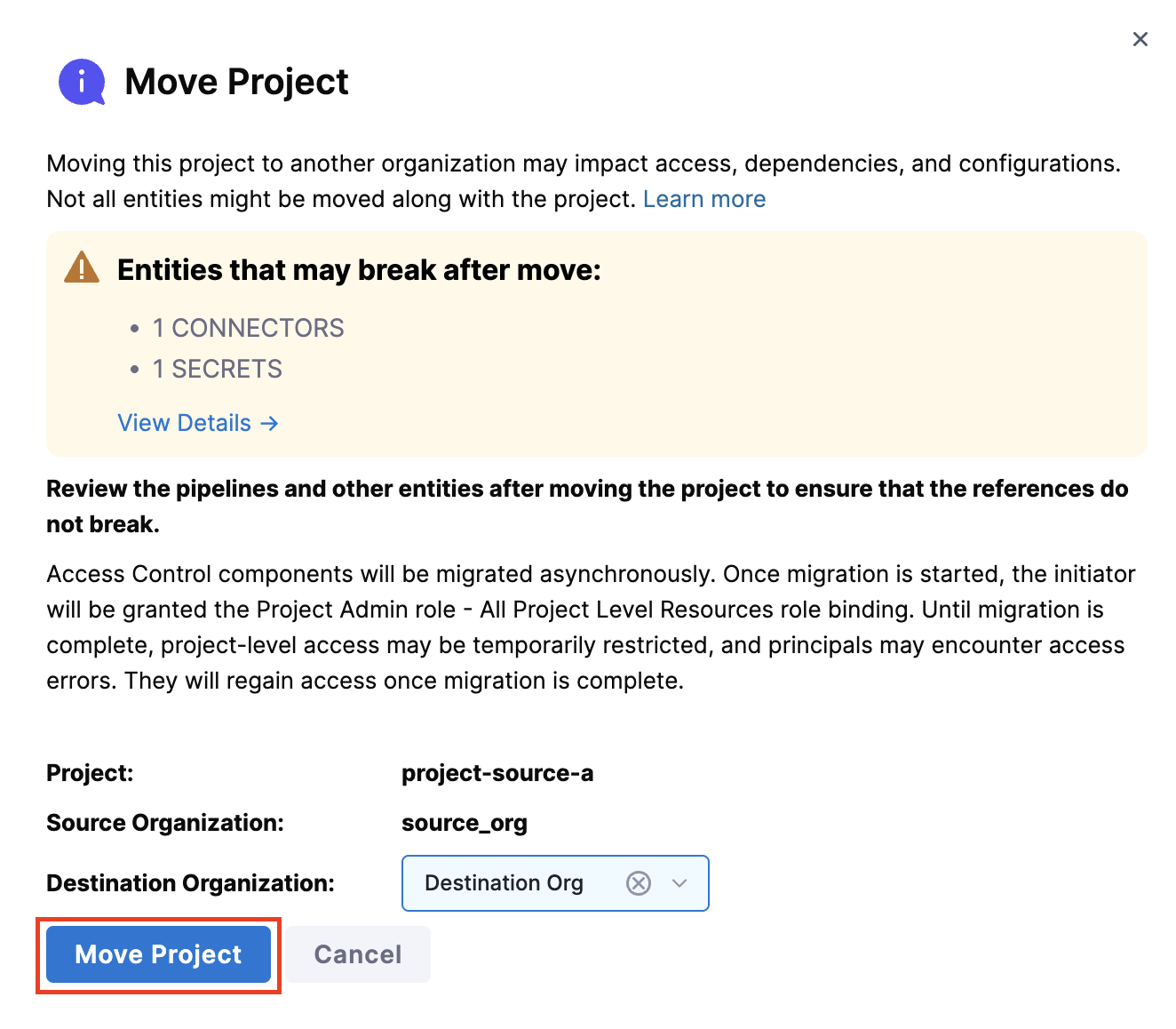
Click Move Project to proceed
Step 3: Confirm Move
-
Review the confirmation dialog showing potential impacts. Type the Project identifier to confirm
-
Click Confirm Move
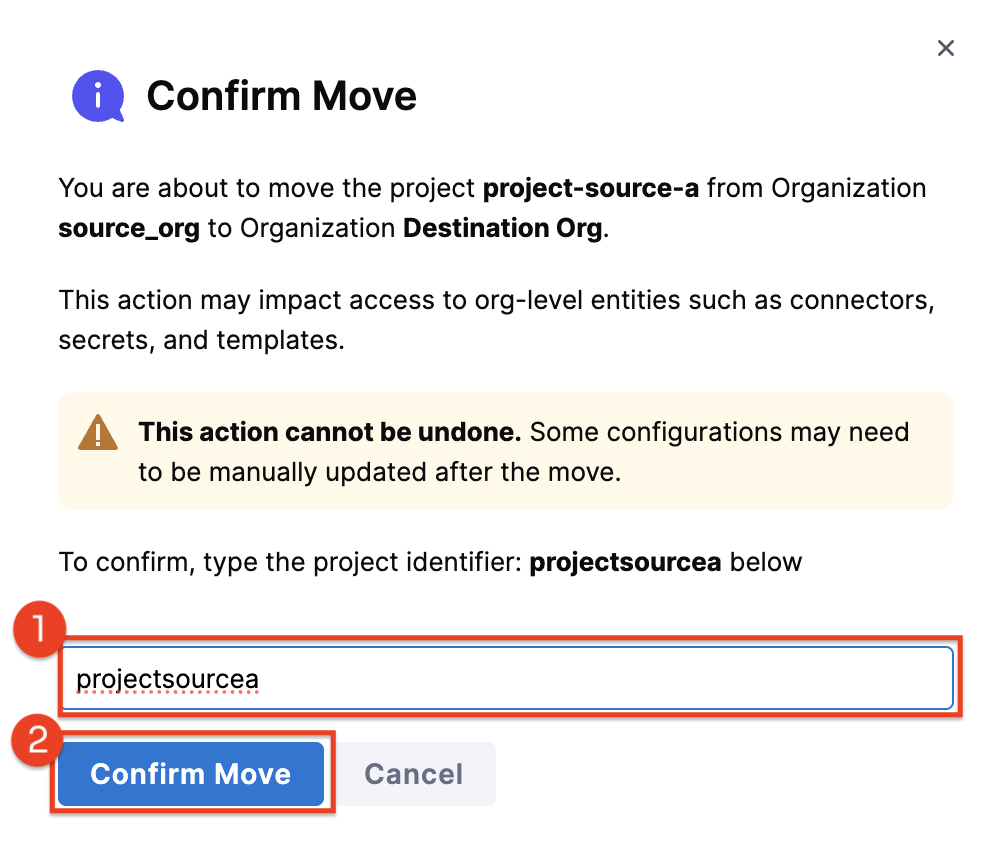
While a project is being moved, all project-level access control components—including users, service accounts, user groups, role bindings, resource groups, and roles—are moved asynchronously in the background, which can take some time.
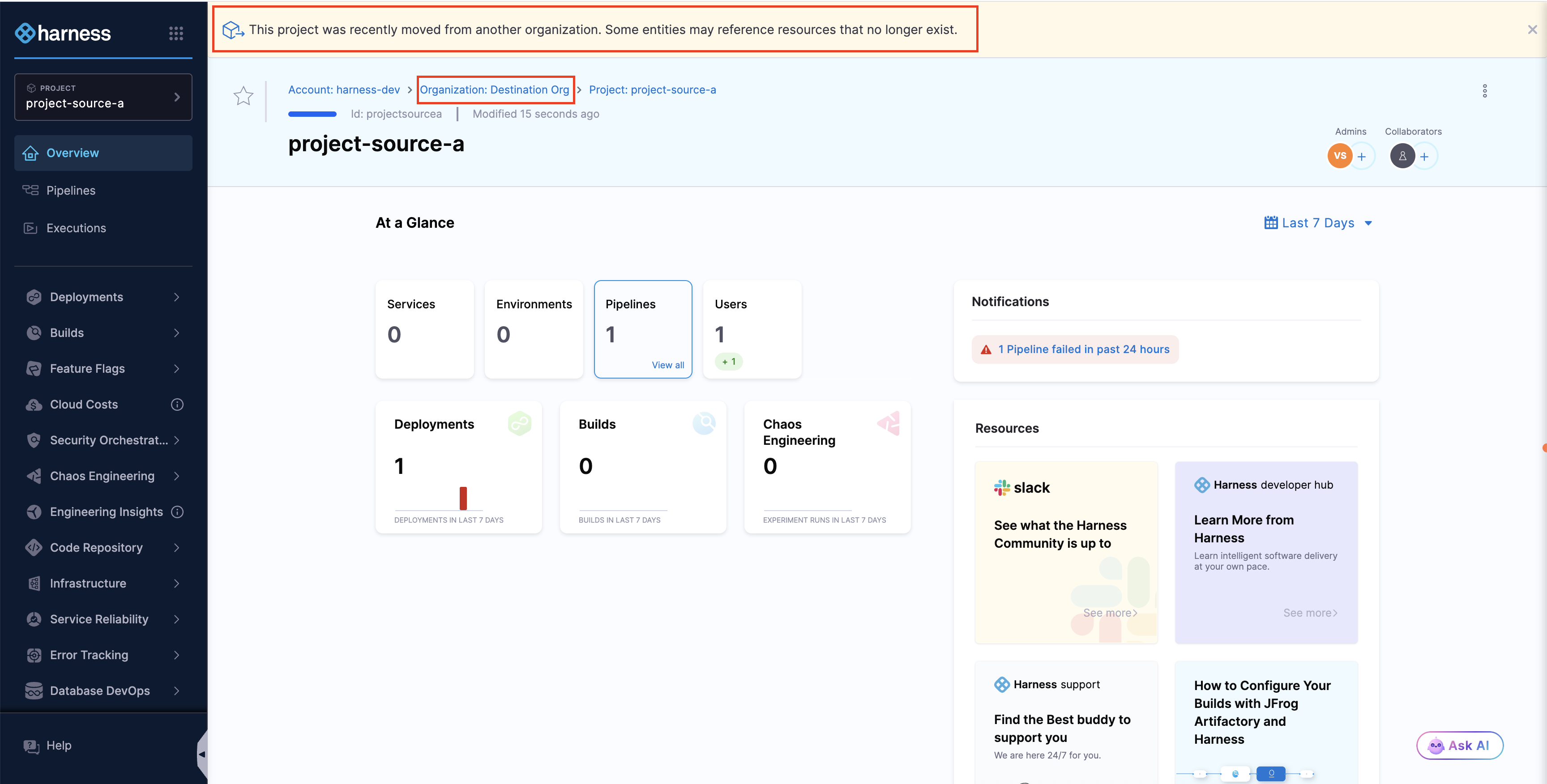
Once the move is complete, you'll be redirected to the project in its new organization. A banner will appear stating: This project was recently moved from another organization. Some entities may reference resources that no longer exist. and you can also view the new destination organization, as shown in the image below.
Follow the post-move remediation guide to verify and update any broken references, and ensure the project functions correctly in its new organization.